Users
Overview
The Users page is where the administrator creates and manages user accounts, assigns roles, and configures each user's default view. Only users with the Admin role can access this page.
User roles determine which parts of the application a user can access. This prevents lower-privileged users from accessing sensitive configuration areas such as gateway settings.
Tip
Throughout this user guide, each page shows role tags at the bottom indicating which roles have access to it. The search bar also supports filtering by role name, making it easy to find all pages accessible to a specific role.
User Roles
Savee has seven user roles with different levels of access:
| Role | Description |
|---|---|
| Superadmin | Full access to the whole system including admin management. |
| Admin | Full access to all pages including Settings and user management. Cannot manage other admins. |
| Service | Full access identical to Admin, except cannot manage users. Intended for installation and maintenance technicians. |
| Power User | Access to all operational and monitoring pages, but not Settings or user management. |
| Plus User | Access to device control and groups, but no access to configuration, automations, gateways, or statistics. |
| User | Basic access to device control and groups only. |
| Kiosk | Restricted to Button Panels and Layouts only. Intended for tablets and fixed display screens. |
Role Access Matrix
The table below shows which pages each role can access:
| Page | (Super)Admin | Service | Power User | Plus User | User | Kiosk |
|---|---|---|---|---|---|---|
| Button Panels | ✓ | ✓ | ✓ | ✓ | ✓ | ✓ |
| Layouts | ✓ | ✓ | ✓ | ✓ | ✓ | ✓ |
| Controls | ✓ | ✓ | ✓ | ✓ | ✓ | |
| Groups | ✓ | ✓ | ✓ | ✓ | ✓ | |
| Settings | ✓ | ✓ | ✓ | ✓ | ✓ | |
| Automations | ✓ | ✓ | ✓ | |||
| Ethernet Connect | ✓ | ✓ | ✓ | |||
| Gateways | ✓ | ✓ | ✓ | |||
| Statistics | ✓ | ✓ | ✓ | |||
| Users | ✓ |
Managing Users
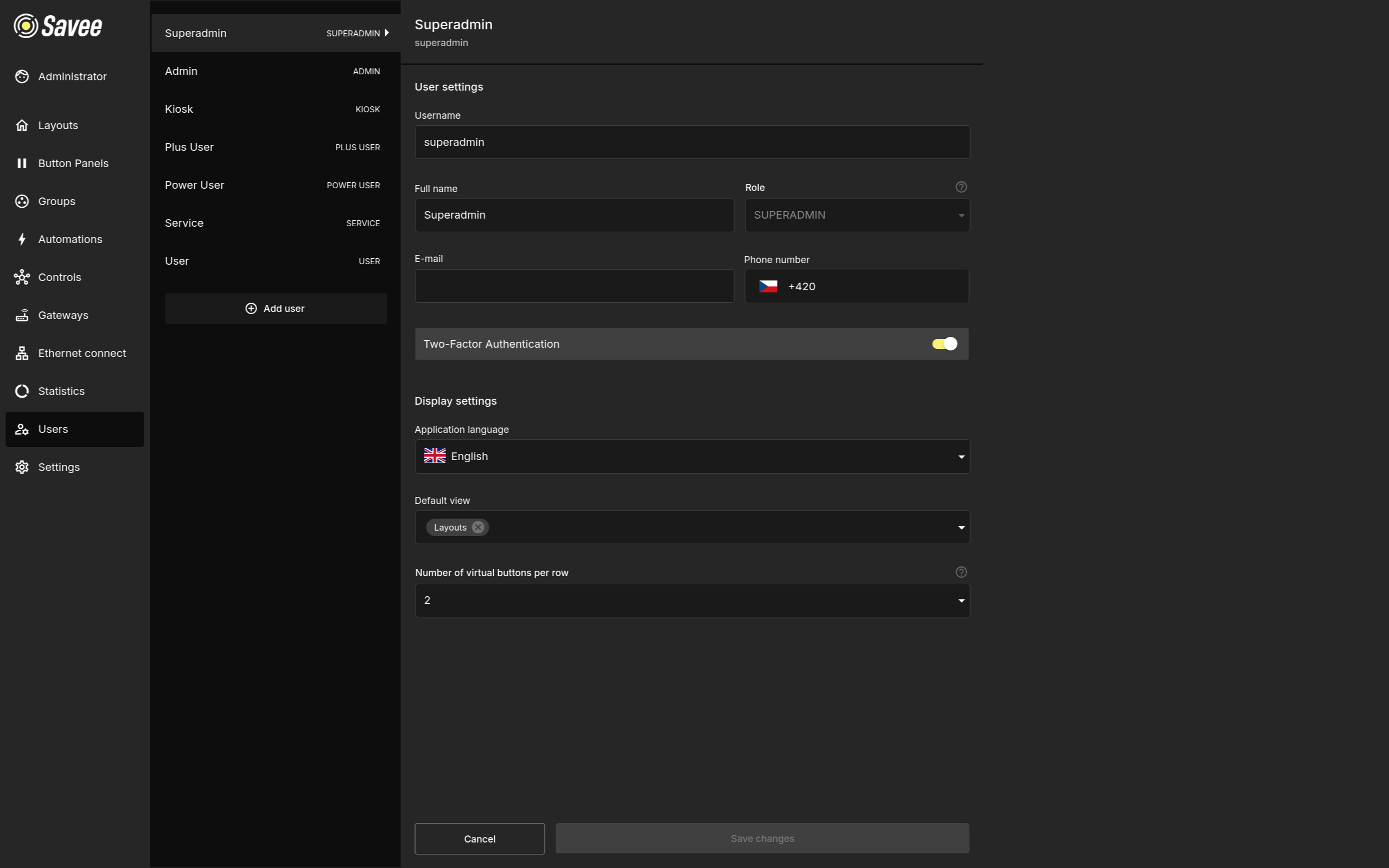
The Users page lists all existing accounts. Each entry shows the user's name, username, and assigned role. The following actions are available via the user detail view or context menu:
- Create user — Add a new login with a chosen role and default view.
- Edit user — Change a user's name, username, password, role, default view, or contact details.
- Delete user — Permanently remove a user account.
User Settings
Selecting a user opens that user's settings in the detail view. These settings mostly mirror the options available to users in their own user settings, but here an administrator can configure them for each account.
The settings include the user's username, full name, role, contact details (Users can have a phone number and email address attached to their account. These are used by the reporting system to notify the user when relevant events or alerts occur.) and the two-factor authentication status.
For Kiosk users, an additional Lock account option is available. When enabled, the logout button is disabled on the display, preventing users from leaving the kiosk account during normal operation.
Display settings
Users are able to individually set their preffered settings like application language, default view (sets where the app loads immediately after login) or button panels per row (this affects how buttons display in mobile view).
The Admin roles have the ability to change these settings here in the Users page.