Groups
Overview
The Groups page lets you control multiple devices as a single unit. Groups are the primary way to manage devices in Savee — output level, on/off state, and automations are all applied at the group level.
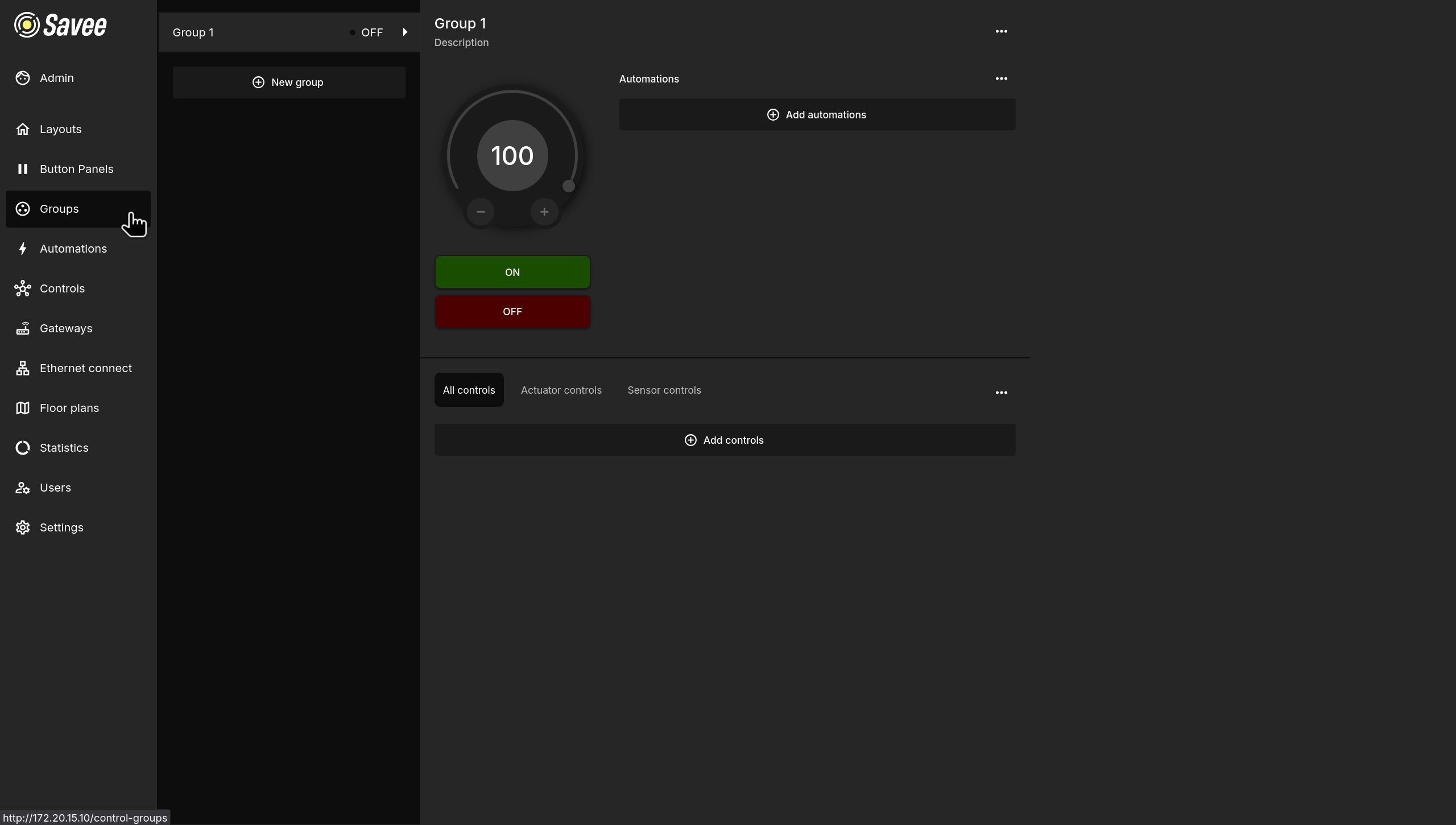
The page is split into two panels: the group list on the left and the group detail view on the right.
Group List
The left panel lists all existing groups. Each entry shows the group name and its current state. Click a group to open its detail view on the right.
If a crossed chain icon appears next to the state indicator, it means the devices within the group are in differing states and are not uniformly controlled by the group.
To create a new group, click the + New group button at the bottom of the list.
Group Detail View
Selecting a group opens its detail view, which contains three main areas: the group control, automations, and controls.
Group Control
The large dial at the top of the detail view shows the group's current output level. Use the − and + buttons to adjust the level, or click ON / OFF to toggle the entire group.
Automations
The Automations section lists all automations currently assigned to this group. Click + Add automations to assign an existing automation to the group.
Use the ⋯ menu in the section header to remove automations from the group.
Note
Automations are created and managed in the Automations section of the navigation panel. Refer to the Automations page for detailed instructions.
Controls
The Controls section lists all devices assigned to this group. The tabs filter the list by type:
| Tab | Shows |
|---|---|
| All controls | Every device in the group. |
| Actuator controls | Output devices only (e.g. lights, switches). |
| Sensor controls | Input devices only (e.g. lux meters, sensors). |
Click + Add controls to add devices to the group. To remove devices, use the ⋯ menu in the section header.