Ethernet Connect
Overview
The Ethernet Connect page manages wired EC devices connected directly to the Savee network over Ethernet. Unlike wireless devices paired through a gateway, EC devices communicate via IP and are managed here independently.
The page uses the same split-panel layout as Gateways: the device list is on the left and the device detail view is on the right.
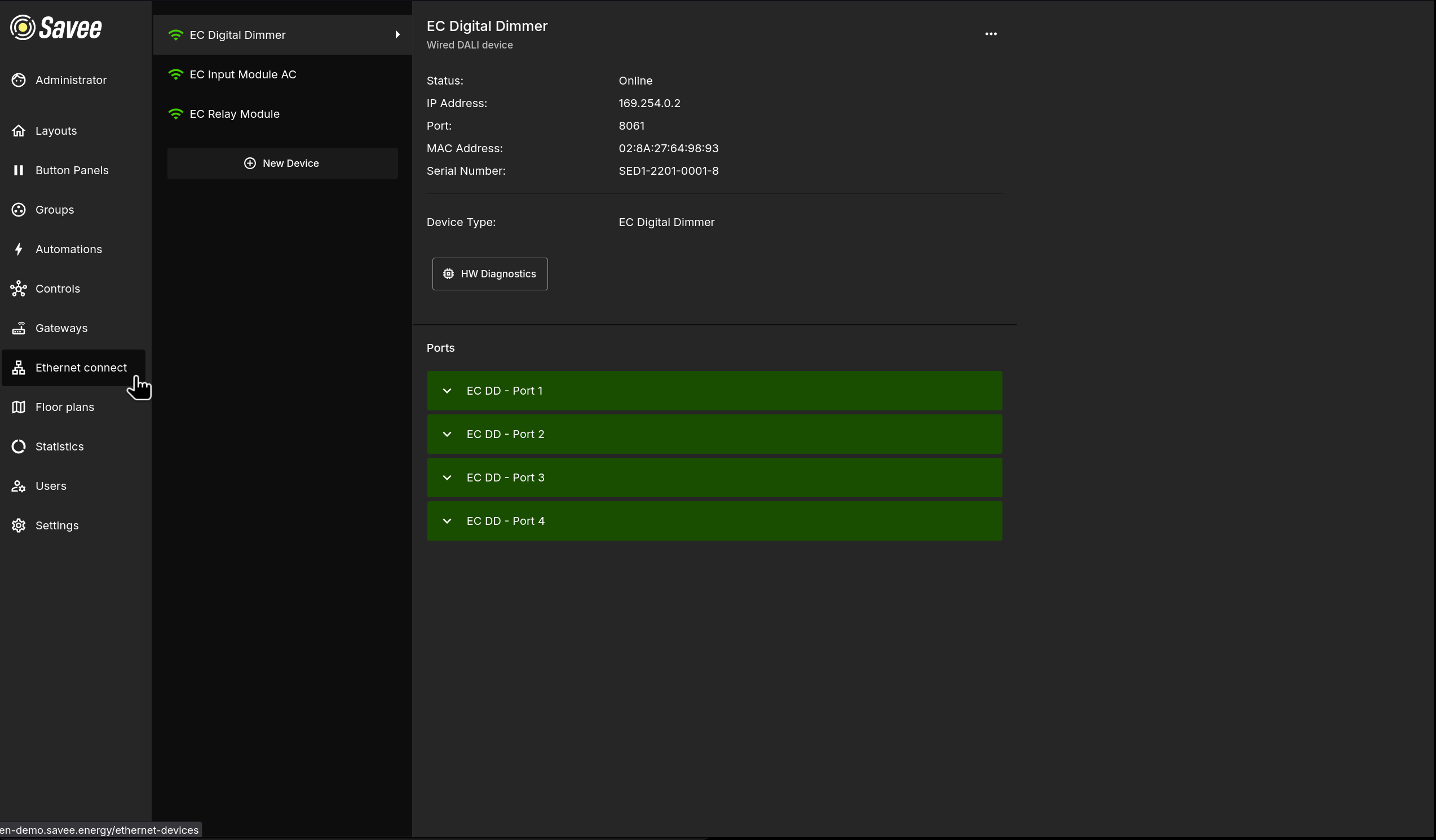
Click a device in the list to open its detail view. To add a new device, click + New Device at the bottom of the list.
Device Detail View
The detail view shows the full configuration and status of the selected EC device. Use the ⋯ menu in the top-right to manage the device (see Managing Devices).
| Property | Description |
|---|---|
| Status | Current connectivity status (e.g. Online). |
| IP Address | The network address used to reach the device. |
| Port | The port used for communication with the device. |
| MAC Address | The hardware address of the device. |
| Serial Number | The device's unique serial number. |
| Device Type | The type of EC device (e.g. EC Digital Dimmer, EC Input Module AC, EC Relay Module). |
The HW Diagnostics button below the properties provides detailed hardware information about the device, such as CPU voltage, temperature, and serial data.
Ports
Below the device properties, the Ports section lists all output or input channels available on the device. Each port row is expandable — click the chevron to view and directly control the individual port.
Tip
Direct port control will have no effect if an active automation is currently controlling the device. Automations take priority over manual control in Savee.
Managing Devices
The ⋯ menu in the device detail view provides the following options:
| Option | Description |
|---|---|
| Edit Device Information | Change the device's name and description. |
| Edit Network Configuration | Update the IP address, port, or identity key the application uses to reach the device. |
| Replace Device | Connect a new EC device of the same type that takes over the identity of the current one. Useful after a hardware failure. |
| Remove Device | Permanently removes the device from Savee. |
Adding a Device
Clicking + New Device opens a setup wizard:
Step 1 — Device Type
Select the type of EC device to add (e.g. EC Digital Dimmer, EC Input Module AC, EC Relay Module).
Step 2 — Basic Information
| Field | Description |
|---|---|
| Device name | A descriptive name to identify the device in the list. |
| Description | An optional description such as the device's location or purpose. |
Step 3 — Network Configuration
| Field | Description |
|---|---|
| IP address | The network address of the device. |
| Port | The port number used for communication. |
| Identity key | The unique key used for secure communication. |
Alternatively, upload a .json configuration file exported from the device's configuration software to fill these fields automatically.
Tip
For technical specifications and wiring examples, refer to the EC device hardware documentation.