Logging in
First-time Login
After the server setup is complete, you can access the application by entering the server's IP address in a web browser's address bar. This will direct you to Savee's installation wizard.
Installation Wizard
The installation wizard guides you through the initial setup of the Savee application in four steps. It is displayed automatically the first time you access the application.
Step 1 — Create Administrator Account
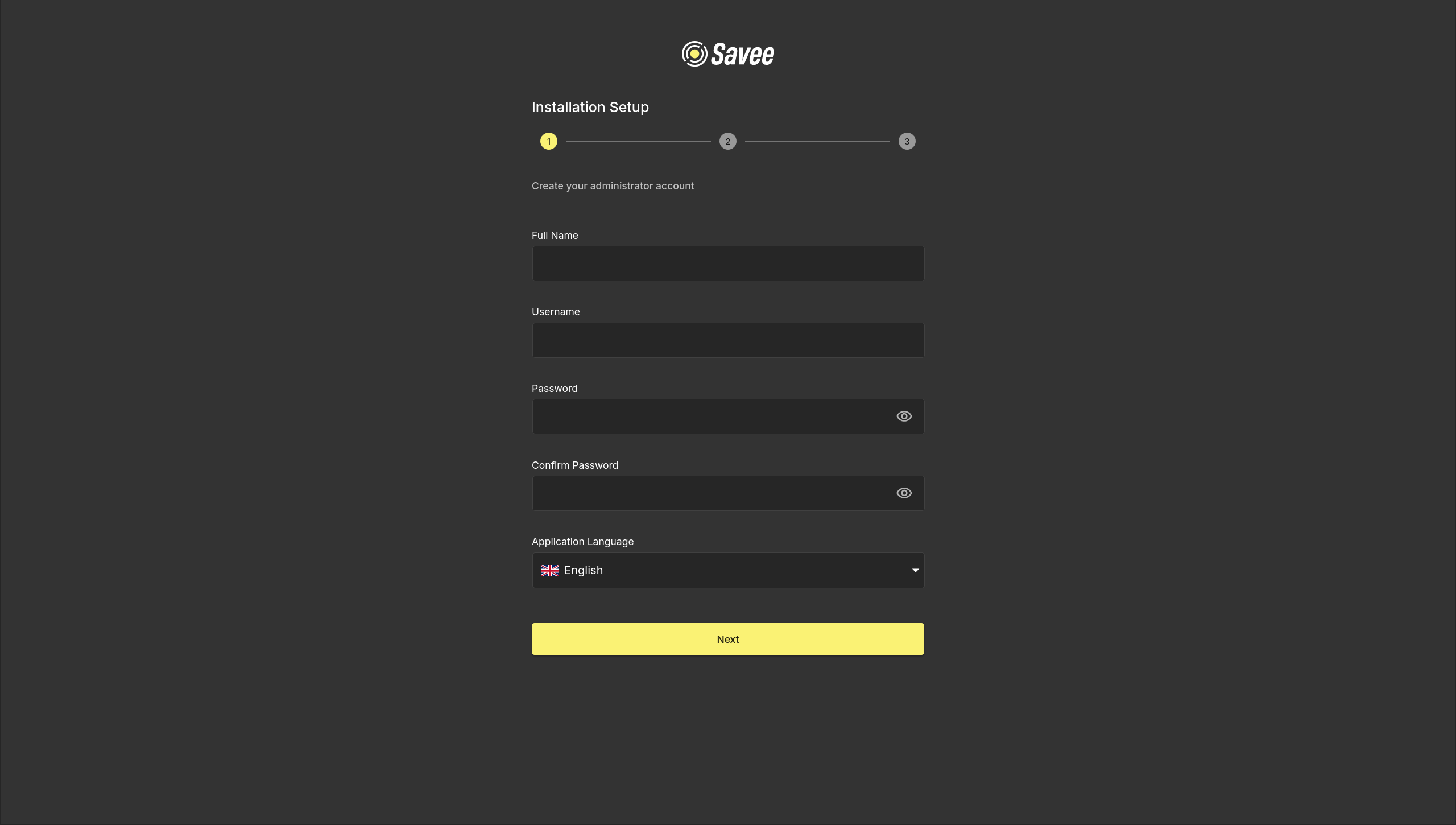
In the first step, you will create the administrator account used to manage the application. Fill in the following fields:
| Field | Description |
|---|---|
| Full Name | The display name for the administrator account. |
| Username | The login name used to sign in to the application. |
| Password | A secure password for the administrator account. |
| Confirm Password | Re-enter the password to confirm it is correct. |
| Application Language | The default language for the application interface. |
Once all fields are filled in, click Next to proceed to the next step.
Warning
Store your administrator credentials in a safe place. If you lose access to the administrator account, recovery may require direct server intervention.
Step 2 — Data Controller Details
In the second step, enter the contact details of the personal data controller for this installation. These details are used in the privacy notice shown to users after they sign in.
The following fields are required:
| Field | Description |
|---|---|
| Controller name | The legal name of the organization or person responsible for personal data processing. |
| Controller e-mail | The contact e-mail address for privacy-related requests. |
| Controller address | The postal address of the controller. |
Once all fields are filled in, click Next to proceed to the license agreement.
Note
The operator of the installation is responsible for the legal content of the privacy notice. Savee provides a built-in template, but the controller details and any custom wording must match the actual installation.
Step 3 — License Agreement
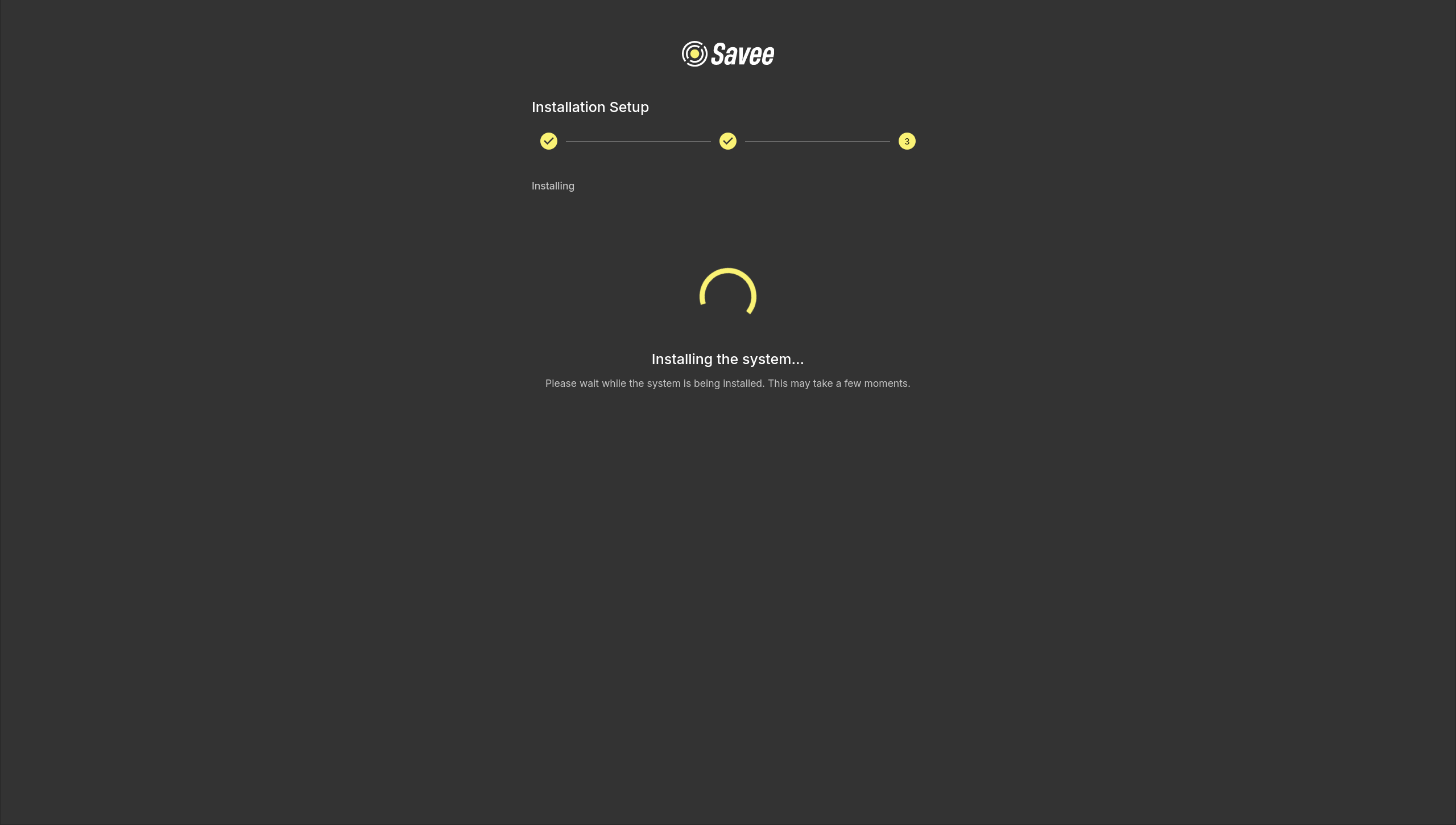
In the third step, you must review and accept the Savee Software License Terms before the installation can proceed. Read through the license agreement displayed on screen, then check the I agree to the terms and conditions checkbox to confirm acceptance.
Once accepted, click Complete Installation to begin the installation process. If you need to make changes to the previous step, click Back to return.
Step 4 — Installation
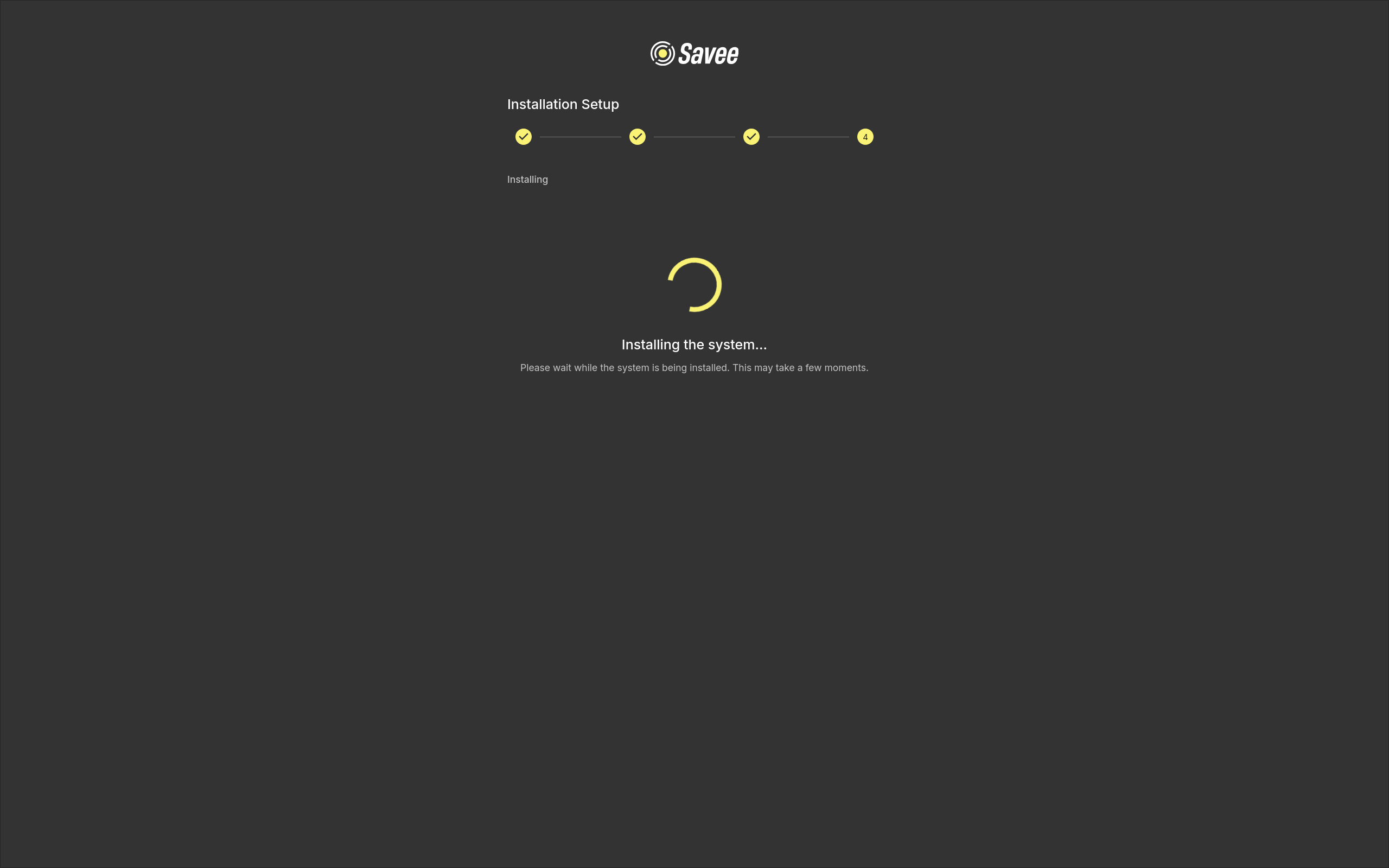
The final step performs the system installation automatically. A loading indicator is displayed while the system is being configured. No action is required — please wait until the process completes before navigating away from the page.
Note
Installation may take a few moments depending on the server hardware. Do not close the browser tab or restart the server during this step.
Once the installation finishes, you will be redirected to the login page where you can sign in with the administrator credentials created in step 1.
Accessing the Login Page
After the installation wizard completes, you will be redirected to the login page. Enter the administrator credentials you created during the installation wizard and click Sign In.
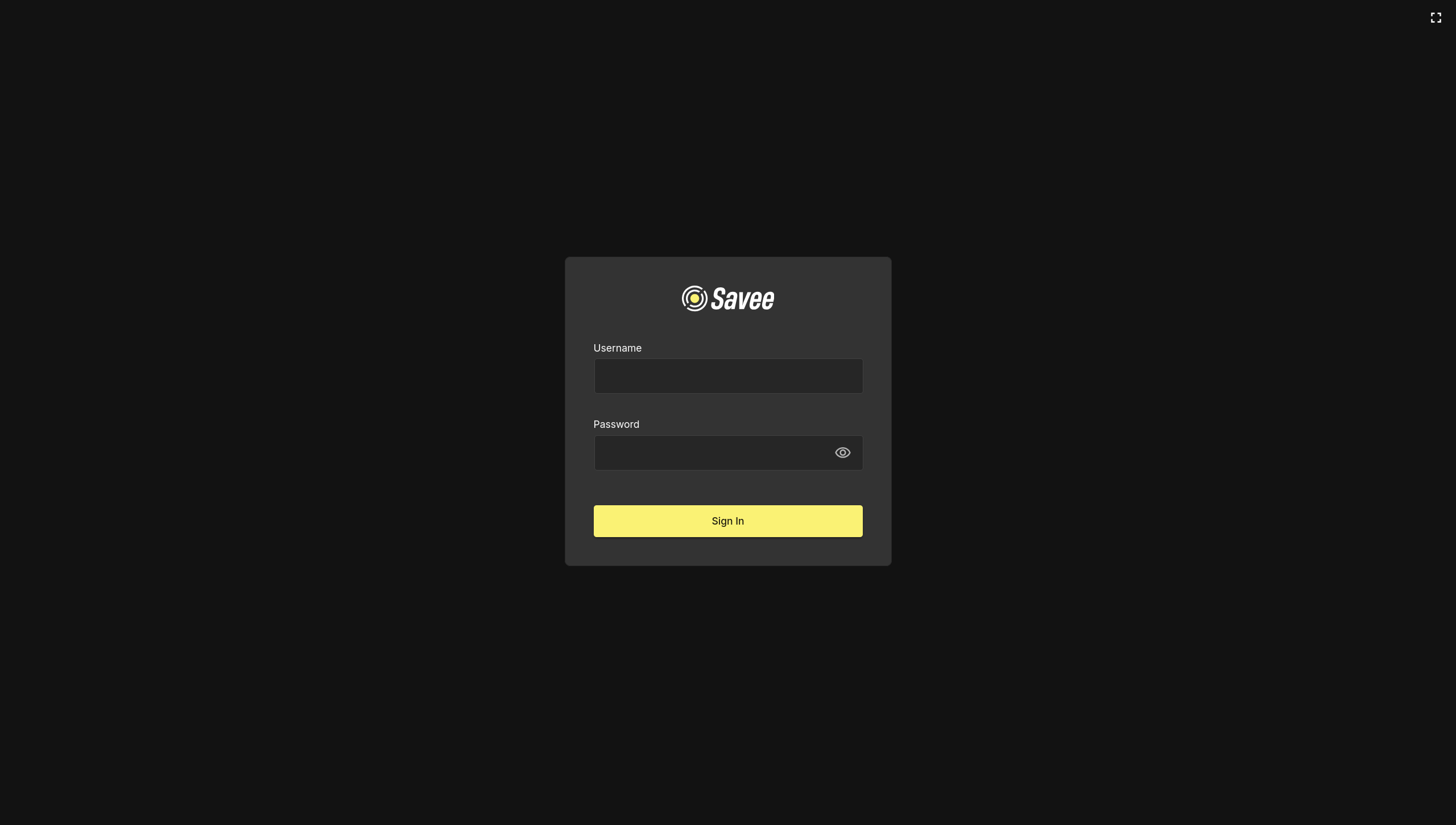
Upon a successful login, the application will load and the navigation panel will appear on the left side of the screen. The navigation panel provides access to all major features of the application.
Privacy Notice Acknowledgement
After signing in, users are asked to acknowledge the installation privacy notice before they can continue using the application. This applies to all roles except Superadmin and Kiosk.
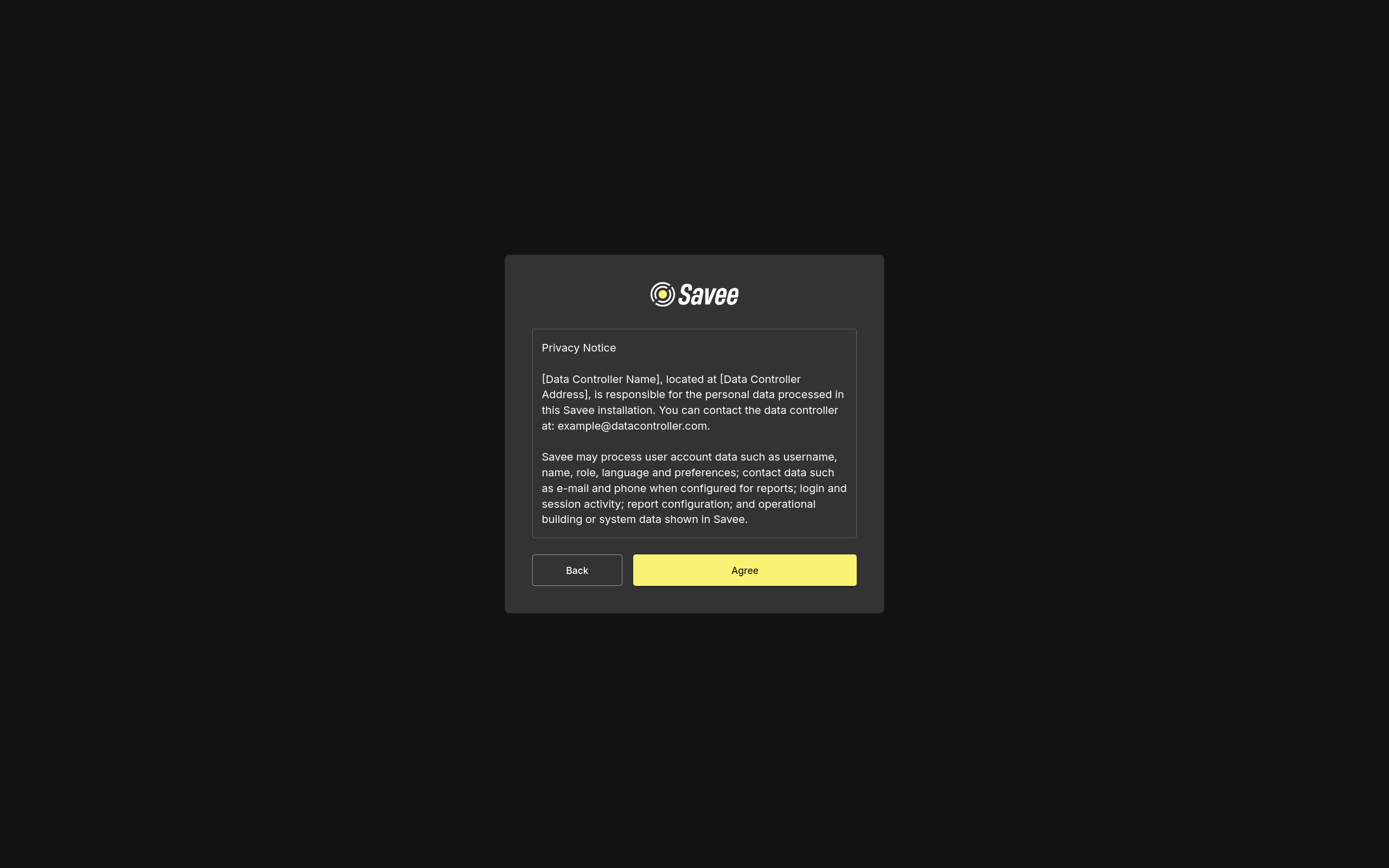
The notice is managed in Settings → Privacy. If the notice text or controller details change, Savee creates a new version and users are asked to acknowledge it again on their next sign-in. Users can also revoke their acknowledgement from the Privacy settings; after revocation, they are signed out and must acknowledge the current notice again before continuing.
After Logging In
Once logged in, it is recommended to set up individual user accounts before regular use of the application begins. The administrator account should be reserved for system administration tasks only — day-to-day users should each have their own account with appropriate permissions.
Navigate to the Users section in the navigation panel to create new accounts and assign roles based on each user's responsibilities.
Changing the Password
To change your password, follow these steps:
-
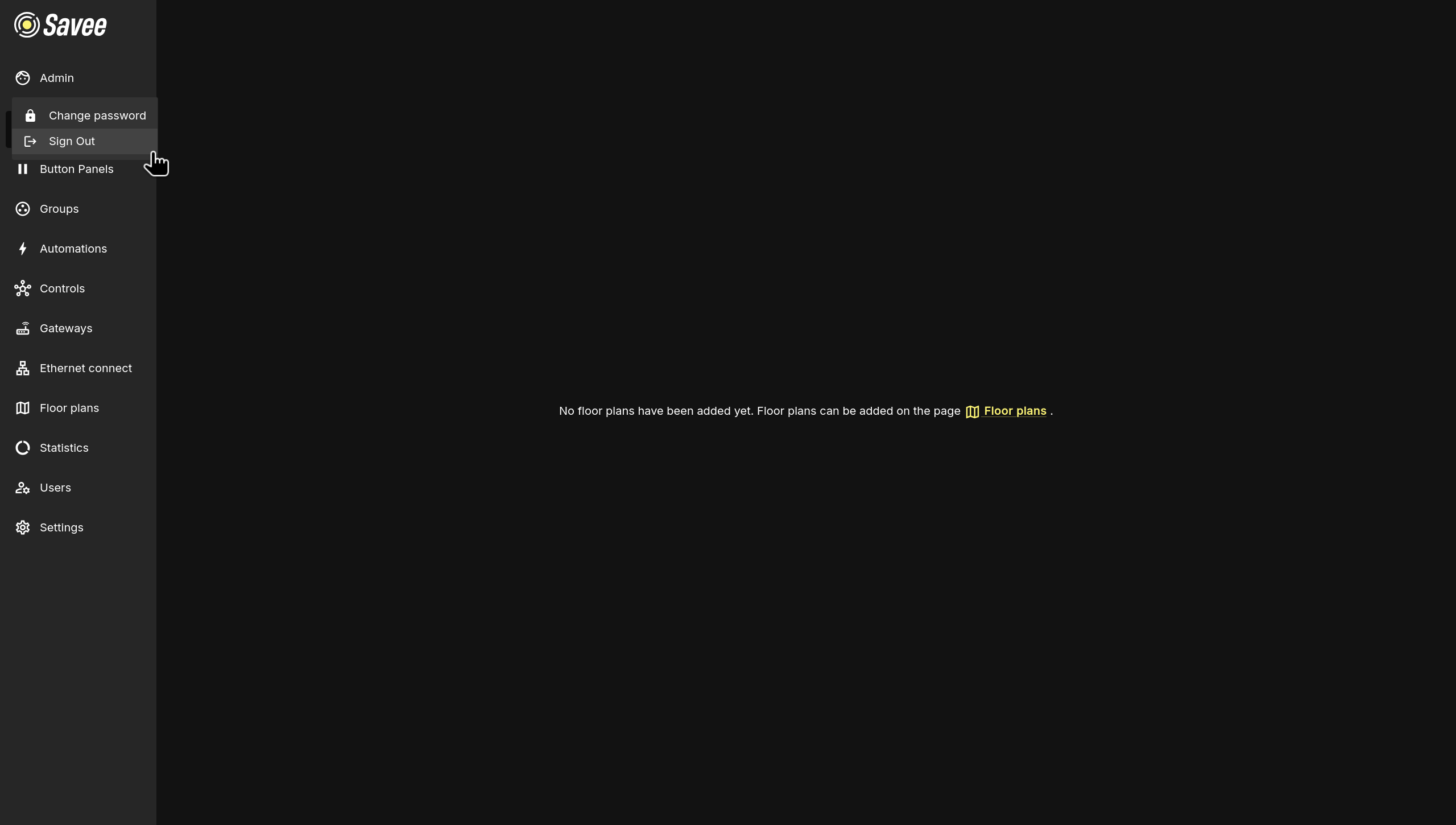
Locate your account name at the top of the navigation panel, just below the Savee logo in the upper-left corner.
-
Click on your account name to open a drop-down menu with the options Change password and Sign Out.
-
Select Change password.
-
Enter your current password, then provide and confirm a new secure password.
-
Click Change Password to save the changes.
Warning
Make sure to remember your new password. If you forget it, contact your system administrator as self-service recovery is not available.
Logging Out
To log out of the application:
-
Click on your account name in the navigation panel.
-
Select Sign Out from the drop-down menu.
-
You will be redirected back to the login screen.
Security Best Practices
To maintain the security of your application, consider the following practices:
-
Regularly Update Passwords: Encourage all users to update their passwords periodically.
-
Use Strong Passwords: Passwords should be at least 8 characters long and contain at least 1 number.
Troubleshooting
If you encounter any issues during login, consider the following troubleshooting steps:
-
Incorrect Username or Password: Ensure that you are entering the correct credentials. Remember that both the username and password are case-sensitive. Check that your caps-lock is not active by accident.
-
Forgotten Password: If you forget your password, contact your server administrator and set a new password.
-
Network Issues: Ensure that the server is accessible over the network and that there are no firewall or proxy settings blocking access to the server's IP address.